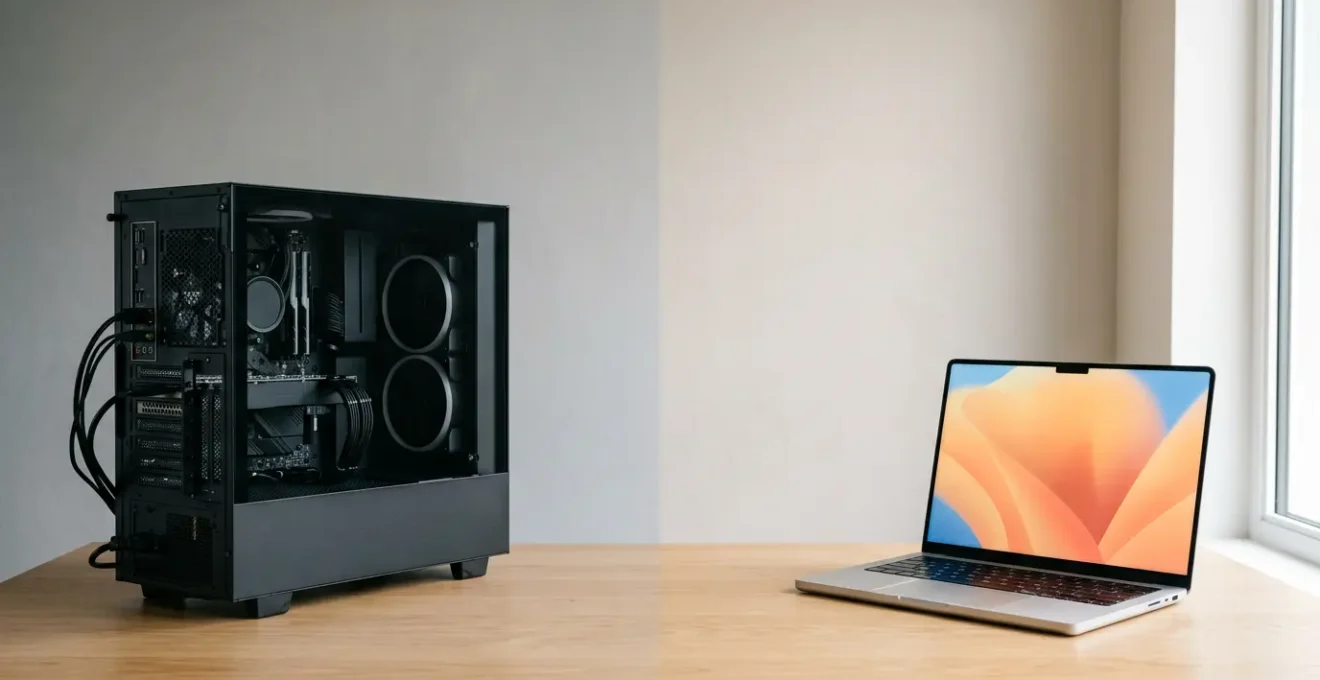
For sustained 8+ hour remote work, a desktop PC consistently outperforms a laptop in longevity, cost-effectiveness, and ergonomic health.
- Laptops suffer from unavoidable performance decay due to heat (“thermal debt”), leading to slowdowns and a shorter lifespan.
- Desktops offer superior “longevity economics” through modular upgrades, avoiding the need for a full system replacement when one component fails.
Recommendation: Prioritize a desktop setup for your primary workspace to protect your physical health and long-term productivity, using a laptop only for its intended purpose—mobility.
The shift to remote work has placed a new, intense demand on our home technology. If you’re working from home, you’ve likely felt it: the creeping back pain, the mysteriously sluggish computer right before a deadline, the frustration of a setup that just doesn’t feel right. Many of us defaulted to a laptop, seduced by the promise of working from the couch or a coffee shop. This flexibility is valuable, but it often comes at a hidden price when that laptop becomes a full-time, 8+ hour-a-day workhorse. Research even shows that a proper setup with multiple monitors can lead to productivity gains of 20 to 30 percent, a boost that is often easier to achieve with a desktop.
The common advice is to weigh power against portability. But this simple trade-off misses the crucial point for anyone in it for the long haul. The real question isn’t just about today’s performance, but about sustainability—for your hardware, your productivity, and your health. What if the very design that makes a laptop portable also makes it a ticking clock of performance degradation and physical discomfort? This guide moves beyond the surface-level debate. We will dissect the hidden costs of relying on a laptop for marathon work sessions, from the physics of heat dissipation to the long-term economics of repairability and the often-overlooked security perimeters of a stationary versus mobile office. By understanding these factors, you can make a strategic choice that supports not just your work, but your well-being for years to come.
This article breaks down the critical factors you must consider, moving from the internal mechanics of your machine to the external environment of your workspace. By the end, you’ll have a clear framework for choosing the right tool for sustained professional success.
Summary: The Ultimate Guide to Choosing Your Remote Work Computer
- Why Your Thin Laptop Slows Down After 2 Hours of Heavy Work?
- How to Clean Laptop Fans to Drop Temperatures by 10 Degrees?
- macOS vs Windows: Which Workflow Is Faster for Graphic Designers?
- The Charging Habit That Kills Your Laptop Battery in Less Than a Year
- When to Upgrade Your CPU: The 3 Signs Your Computer Is Obsolete
- Mesh Wi-Fi vs Extenders: Which Solves Dead Zones Better?
- The Public Wi-Fi Mistake That Exposes Remote Workers’ Data
- How to Make a 5-Year-Old PC Feel New Without Buying Hardware?
Why Your Thin Laptop Slows Down After 2 Hours of Heavy Work?
The sleek, impossibly thin design of modern laptops is a marvel of engineering, but it hides a fundamental weakness: heat. When you push your laptop with demanding tasks like video editing, compiling code, or even a heavy multi-tab browsing session, the CPU and GPU generate significant heat. In the cramped chassis of a laptop, there’s nowhere for this heat to go. This triggers a self-preservation mechanism called thermal throttling. To prevent permanent damage, your laptop’s processor automatically reduces its speed, causing the frustrating slowdowns you experience during prolonged use. It’s not your imagination; your computer is actively getting slower to save itself.
This isn’t just an occasional inconvenience; it’s a chronic condition for powerful laptops in thin bodies. This cumulative heat stress, or “thermal debt,” not only impacts immediate performance but also accelerates the aging of internal components. Over time, solder points can weaken and chips can degrade faster than they would in a cooler environment. In stark contrast, a desktop PC, with its spacious case, larger fans, and superior airflow, can sustain peak performance indefinitely. The issue is so prevalent that industry data suggests overheating is a factor in approximately 40% of all laptop repairs, highlighting a critical vulnerability in their design for long-term, heavy-duty work.
Understanding thermal throttling is the first step to realizing the core compromise of a laptop. You are trading sustained performance for portability. For short bursts of activity, this trade-off is often acceptable. But for a full 8-hour workday, you are essentially paying a performance tax that simply doesn’t exist in the desktop world.
How to Clean Laptop Fans to Drop Temperatures by 10 Degrees?
If thermal throttling is the disease, then dust is the agent that speeds its progression. Over time, your laptop’s fans suck in air to cool the components, but they also suck in dust, pet hair, and other microscopic debris. This gunk clogs the heatsink fins and fan blades, acting as an insulating blanket. The cooling system becomes progressively less efficient, forcing your laptop to thermal throttle sooner and more aggressively. A simple, regular cleaning can have a dramatic impact on performance and longevity.
The process is less intimidating than it sounds. For most laptops, it involves using compressed air to blow dust out of the vents. For a deeper clean, you may need to open the back panel, but the results are often worth it. By clearing the airways, you allow the fans to move air freely, drastically improving their ability to dissipate heat. This simple maintenance can restore lost performance, quiet down noisy fans, and extend the overall life of your machine by reducing the chronic stress of high temperatures.
Case Study: The Lenovo Legion Performance Revival
A user with a one-year-old Lenovo Legion 5 Pro gaming laptop noticed severe performance drops, with the GPU reaching a dangerous 87°C. Even at idle, temperatures hovered at 60°C. After a thorough cleaning with compressed air on the vents and fans, the results were staggering. Idle temperatures plummeted to a cool 30°C, and gaming performance, which had struggled to maintain 60 frames per second (FPS) on low settings, soared to over 100 FPS on high settings. This demonstrates a direct link between cleanliness and raw performance.
Your Action Plan: Basic Laptop Fan Maintenance
- Power Down and Unplug: Completely shut down the laptop and disconnect it from all power sources, including the AC adapter and any peripherals.
- Access Vents: Locate the air intake and exhaust vents on your laptop’s sides, back, and bottom.
- Use Compressed Air: Use short, controlled bursts of compressed air to blow dust out of the vents and fans. Hold the can upright and never shake it. To prevent damage, try to stop the fan from spinning freely with a non-conductive tool like a plastic spudger while you clean.
- Clean External Surfaces: Wipe down the areas around the vents to prevent dust from being immediately sucked back in.
- Monitor Temperatures: After reassembly (if any was needed), power on the laptop and use hardware monitoring software to check if your temperatures have improved under load.
macOS vs Windows: Which Workflow Is Faster for Graphic Designers?
The “Mac vs. PC” debate is legendary, particularly in creative fields. For graphic designers, the choice of operating system (OS) is less about raw processing power—as both platforms offer high-end hardware—and more about the subtle efficiencies of workflow. The answer to which is “faster” is deeply personal and tied to how you work, but there are distinct philosophical differences between macOS and Windows that favor different styles of creativity.
macOS has long been the darling of the design world, and for good reason. Its strength lies in consistency and simplicity. The user interface is clean, font rendering is historically considered superior, and color management is deeply integrated into the OS. Features like Quick Look (previewing files by hitting the spacebar) and the tight integration between Apple hardware and software create a seamless, “it just works” experience. For designers who value a frictionless, intuitive environment and work primarily within the Adobe and Apple ecosystems, macOS often provides the path of least resistance, minimizing technical friction and maximizing creative flow.
On the other hand, Windows offers unparalleled flexibility and hardware customization. While it may require more initial setup, a Windows machine can be tailored to a designer’s exact needs, often at a better price-to-performance ratio. The file management system is arguably more robust and transparent, giving users more direct control. For designers who need to run specific 3D rendering software, value a wide range of hardware choices (from styluses to monitors), or enjoy tinkering with their system for optimal performance, Windows provides a powerful and open-ended canvas. The choice isn’t about which is objectively better, but which philosophy aligns with your creative process: the curated garden of macOS or the open plains of Windows.
The Charging Habit That Kills Your Laptop Battery in Less Than a Year
The single most destructive habit for a modern laptop battery is keeping it plugged in and fully charged 24/7. It seems counterintuitive—shouldn’t a full battery be a good thing? But for the lithium-ion batteries in every modern laptop, sitting at 100% charge is a high-stress state. When a battery is fully charged, the voltage is at its peak, which accelerates chemical degradation. Compounding this is the heat generated by the laptop itself, especially when plugged in and under load. This combination of high voltage and high heat is a death sentence for battery longevity.
Ideally, a lithium-ion battery is happiest when kept between 20% and 80% of its capacity. Constantly leaving it tethered to the power adapter, especially in a warm environment, forces it to remain in that high-stress 100% state. Within a year, you can see a significant drop in its ability to hold a charge. This is a prime example of poor longevity economics; the convenience of always being plugged in leads directly to a costly future repair. When the battery inevitably fails, you’re faced with a choice: pay for a replacement, which can cost anywhere from $50 to over $200, or replace the entire laptop.
Battery degradation is responsible for a significant portion of early laptop replacements. The inherent limitation of battery life, coupled with the cost of replacement, further shortens the lifespan of laptops in comparison to their desktop counterparts.
– SIIT Computer Technology Institute, SIIT – Desktops Vs Laptops Longevity A Comparative Analysis
This is a problem that desktop users simply never face. Their power is supplied directly from the wall, and there is no consumable battery to manage or worry about. For a remote worker using their machine for 8+ hours a day, the constant charging cycle of a laptop becomes a significant hidden cost and a primary driver of premature obsolescence.
When to Upgrade Your CPU: The 3 Signs Your Computer Is Obsolete
For a desktop PC user, the concept of “obsolescence” is fluid. For a laptop user, it’s often a hard stop. The key difference is modular resilience—a desktop’s ability to be upgraded piece by piece. A laptop is largely a sealed unit; if the CPU becomes a bottleneck, your only option is to buy a new machine. A desktop, however, can have its life extended for years with strategic upgrades. But how do you know when it’s time to upgrade a core component like the CPU?
There are three clear signs your CPU is holding you back. First, software starts to lag. If new versions of your essential applications feel sluggish or basic tasks like opening files take noticeably longer, your CPU may not be able to keep up with modern software demands. Second, multitasking becomes painful. If your computer stutters or freezes when you have a web browser, a communication app, and your primary work software open simultaneously, your CPU lacks the cores or clock speed to juggle the workload. Third, and most critically, you’re experiencing a performance bottleneck. If you’ve already upgraded your RAM and switched to an SSD, but your system still feels slow in CPU-intensive tasks (like rendering video or running complex formulas), the processor is the last remaining culprit.
This is where the desktop’s economic advantage becomes undeniable. Instead of spending $1500+ on a new laptop, a desktop user might spend a few hundred dollars on a new CPU, gaining several more years of high performance. Research from IDC found that organizations can achieve a 37% cost reduction over the PC lifecycle by upgrading components rather than replacing entire systems. This modularity isn’t just about saving money; it’s a more sustainable approach to technology.
As the image shows, the ability to swap out individual parts is the cornerstone of a desktop’s long-term value. This physical access to components is a luxury laptop owners sacrifice for portability, locking them into a much faster and more expensive replacement cycle.
Mesh Wi-Fi vs Extenders: Which Solves Dead Zones Better?
A stable internet connection is the lifeblood of remote work, but Wi-Fi dead zones can bring productivity to a grinding halt. The two most common solutions are Wi-Fi extenders and mesh systems, and for a dedicated home office, the choice has significant implications. A Wi-Fi extender is a simple, low-cost device that grabs the existing signal from your router and rebroadcasts it. While it can solve a dead zone, it does so at a cost: it typically cuts your bandwidth in half and creates a separate network that your devices have to switch to, often clumsily.
A mesh Wi-Fi system is a more elegant and robust solution. It replaces your existing router with a system of multiple “nodes” or “satellites” that work together to blanket your home in a single, seamless Wi-Fi network. Your devices intelligently connect to the strongest node as you move around, without any drop in connection. This is ideal for a remote worker who might move from their desk to another room. More importantly, mesh systems maintain much higher speeds across the network compared to extenders because their nodes use a dedicated wireless channel (a “backhaul”) to communicate with each other.
For a stationary desktop PC, the best solution is always a direct Ethernet connection to the main router or a mesh node. This eliminates Wi-Fi variables entirely, providing the fastest and most stable connection possible. However, for a mobile laptop user, the network environment becomes a critical security consideration. As Arcserve’s IT Security Division notes, “Desktops remain on the domain at all times, laptops are carried around by users who jump from WiFi network to WiFi network, many of which are not secure.” A robust and secure home network, like one provided by a quality mesh system, becomes the first line of defense in creating a safe security perimeter for your remote work.
The Public Wi-Fi Mistake That Exposes Remote Workers’ Data
The allure of working from anywhere is a key benefit of a laptop, but it’s also its greatest security vulnerability. The single biggest mistake a remote worker can make is treating public Wi-Fi—at a coffee shop, airport, or hotel—as a secure network. These networks are often unencrypted and are prime hunting grounds for bad actors using “man-in-the-middle” attacks to intercept your data. Every piece of information you send, from login credentials to sensitive company documents, can be captured.
Even with a VPN, the physical security of a laptop is a major concern. As noted by IT security experts at Arcserve, “Laptops are lost and stolen, often with data that could compromise the company.” While disk encryption like BitLocker is a critical mitigation, it doesn’t prevent the initial loss or the potential for a determined attacker to eventually access the data. This physical risk is something a desktop user rarely, if ever, faces. A desktop PC remains stationary within a controlled, physically secure home office environment.
Case Study: The Stationary Security Advantage
The inherent security advantage of a desktop PC lies in its immobility. By remaining in a single, controlled location, it is shielded from the primary risks that plague laptops: physical theft and exposure to unsecured networks. While a laptop is designed for mobility, this very feature makes it susceptible to damage from handling, drops, and spills, and exposes it to a constantly changing and untrusted network landscape. A desktop’s static nature within a home office creates a reliable security perimeter, both physically and digitally, significantly reducing the risk of data compromise and hardware loss.
The choice to use a laptop for its portability is an explicit acceptance of increased risk. For a company, this means implementing constant software scans and strict policies. For an individual, it means practicing constant vigilance. A desktop, by its very nature, provides a more secure baseline, simplifying the security posture for the remote worker and protecting the company’s digital assets more effectively.
Key Takeaways
- Thermal Debt is Real: The compact design of laptops leads to inevitable heat buildup and performance throttling during long work sessions, a problem desktops don’t have.
- Longevity Economics Favor Desktops: The ability to upgrade individual components (CPU, RAM, GPU) makes desktops a more cost-effective and sustainable investment over a 5+ year lifespan compared to disposable laptops.
- Security is a Place, Not Just a Program: A stationary desktop in a secure home office has a fundamentally stronger security posture than a mobile laptop exposed to physical theft and untrusted public networks.
How to Make a 5-Year-Old PC Feel New Without Buying Hardware?
Before you conclude that your aging desktop is obsolete, a thorough software refresh can often breathe new life into it, delivering a “like new” feeling without spending a dime on hardware. Over years of use, computers accumulate digital clutter: unused applications, temporary files, fragmented data, and even malware. This baggage consumes system resources and slows everything down. A systematic software tune-up can reverse much of this decay.
The process starts with cleaning and updating. Uninstalling programs you no longer use frees up disk space and eliminates unnecessary background processes. Running disk cleanup utilities removes gigabytes of temporary files. Ensuring your operating system and all device drivers are fully updated patches security holes and often includes performance improvements. For a truly dramatic effect, disabling non-essential programs from launching at startup can slash boot times and free up significant RAM for your active tasks. On traditional hard drives, defragmentation can still provide a noticeable boost in file access times.
This ability to restore performance through software maintenance is another testament to the desktop’s longevity. While the same steps apply to a laptop, the impact is often more profound on a desktop whose hardware is not being constantly stressed by heat and battery wear. When a system is severely degraded, the “nuclear option” of a clean OS reinstallation can wipe the slate clean, restoring the PC to its original factory speed. This ability to easily start fresh, combined with the potential for future hardware upgrades, makes a 5-year-old desktop a viable tool, not an electronic relic.
Ultimately, the choice between a laptop and a desktop is a strategic decision about your professional environment. By evaluating your needs through the lens of long-term performance, ergonomics, and security, you can build a workspace that not only supports your daily tasks but also promotes sustainable productivity and well-being for years to come. Your next step should be to assess your current setup against these principles and identify the most impactful change you can make today.